InventoryModules
Inventory: spot shortages and excess stock in time
A step-by-step guide
The inventory overview connects quantities, data freshness and stock changes. Find unavailable products, excess stock and items that have not sold for a long time.
What to prepare
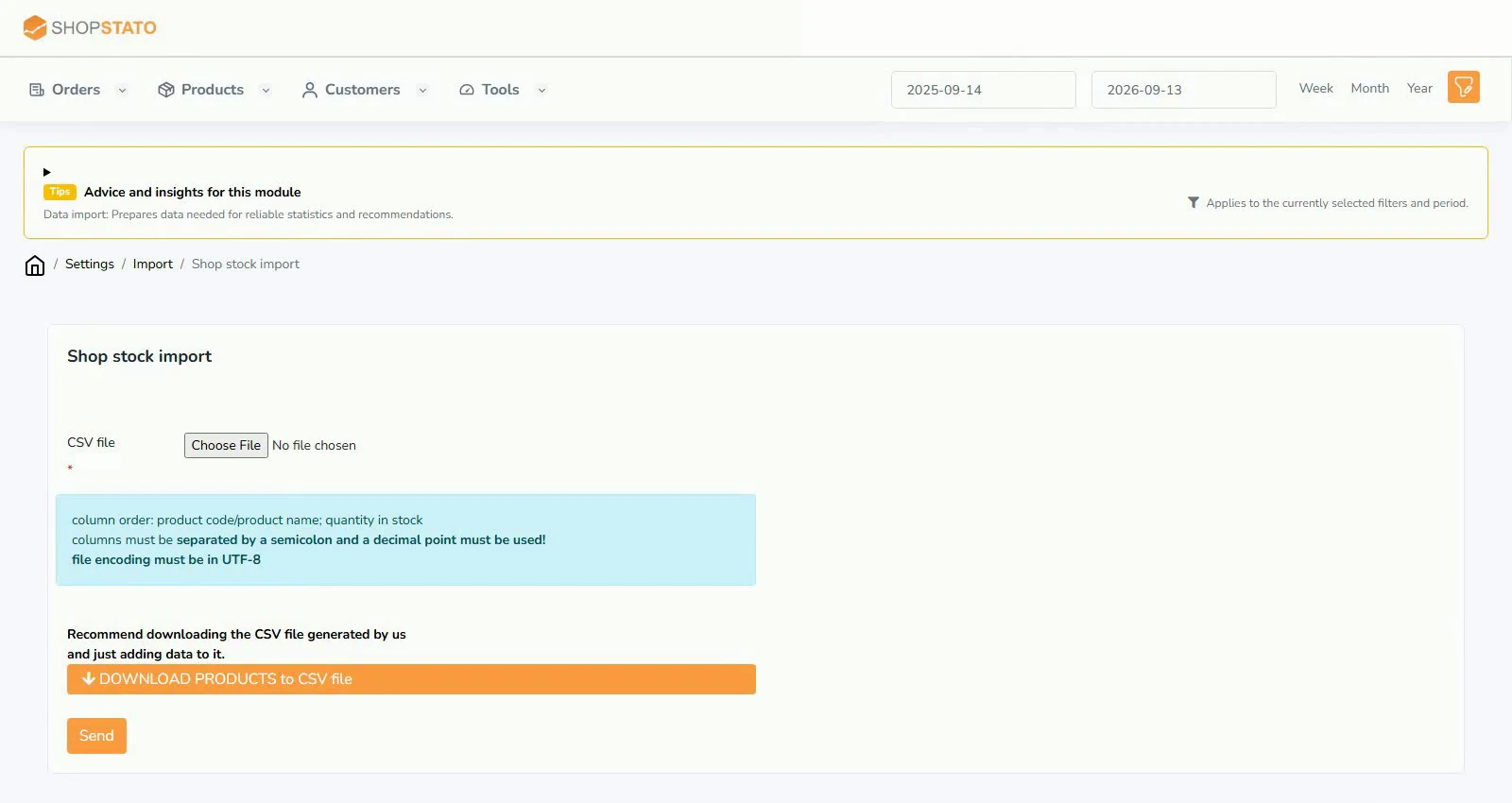
An up-to-date stock import or synchronisation, matched to sales products.
Step by step
- Check the last stock update date and update method.
- Review zero and low stock for products that sell.
- Look at inventory value and products without sales.
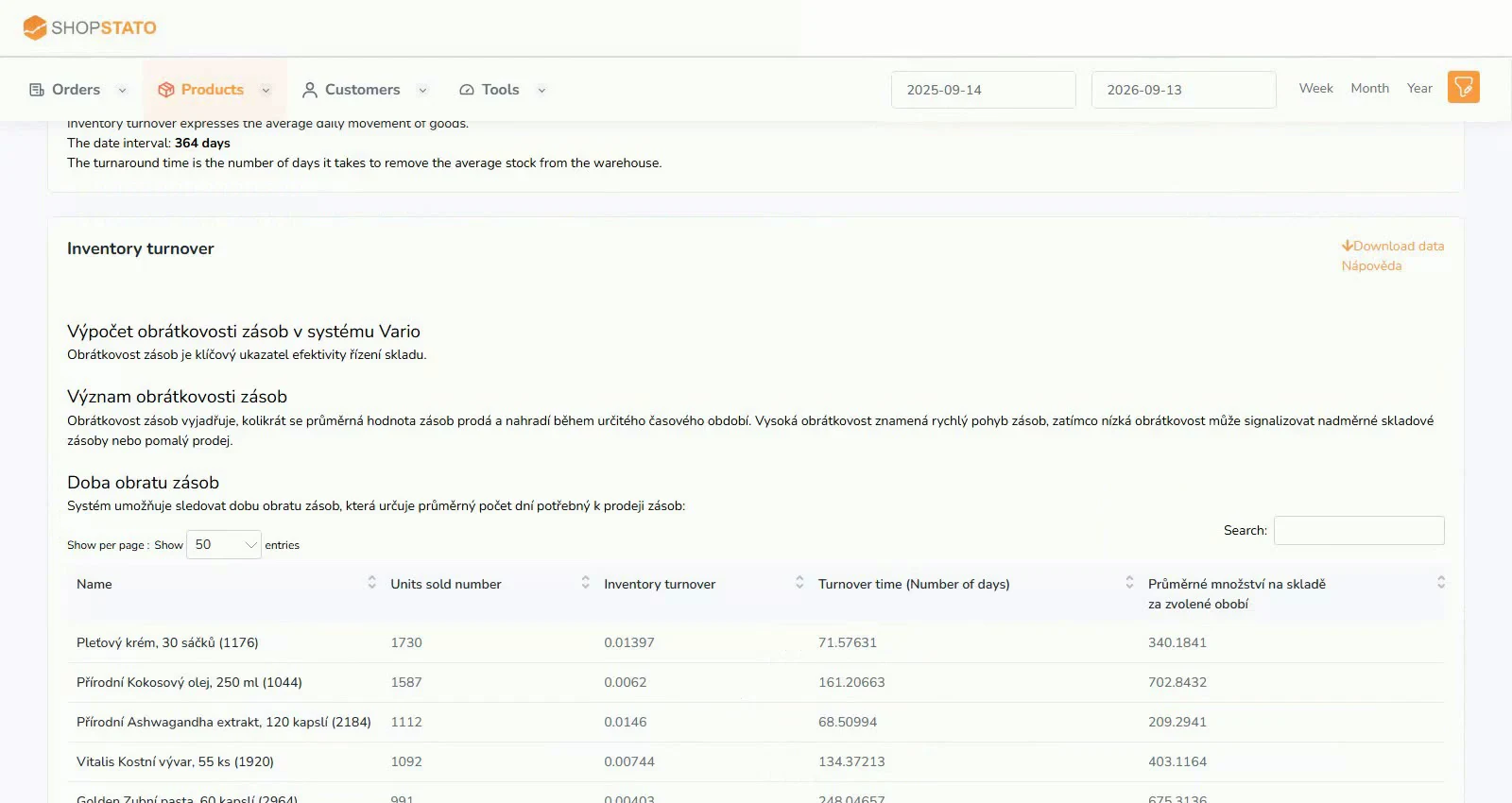
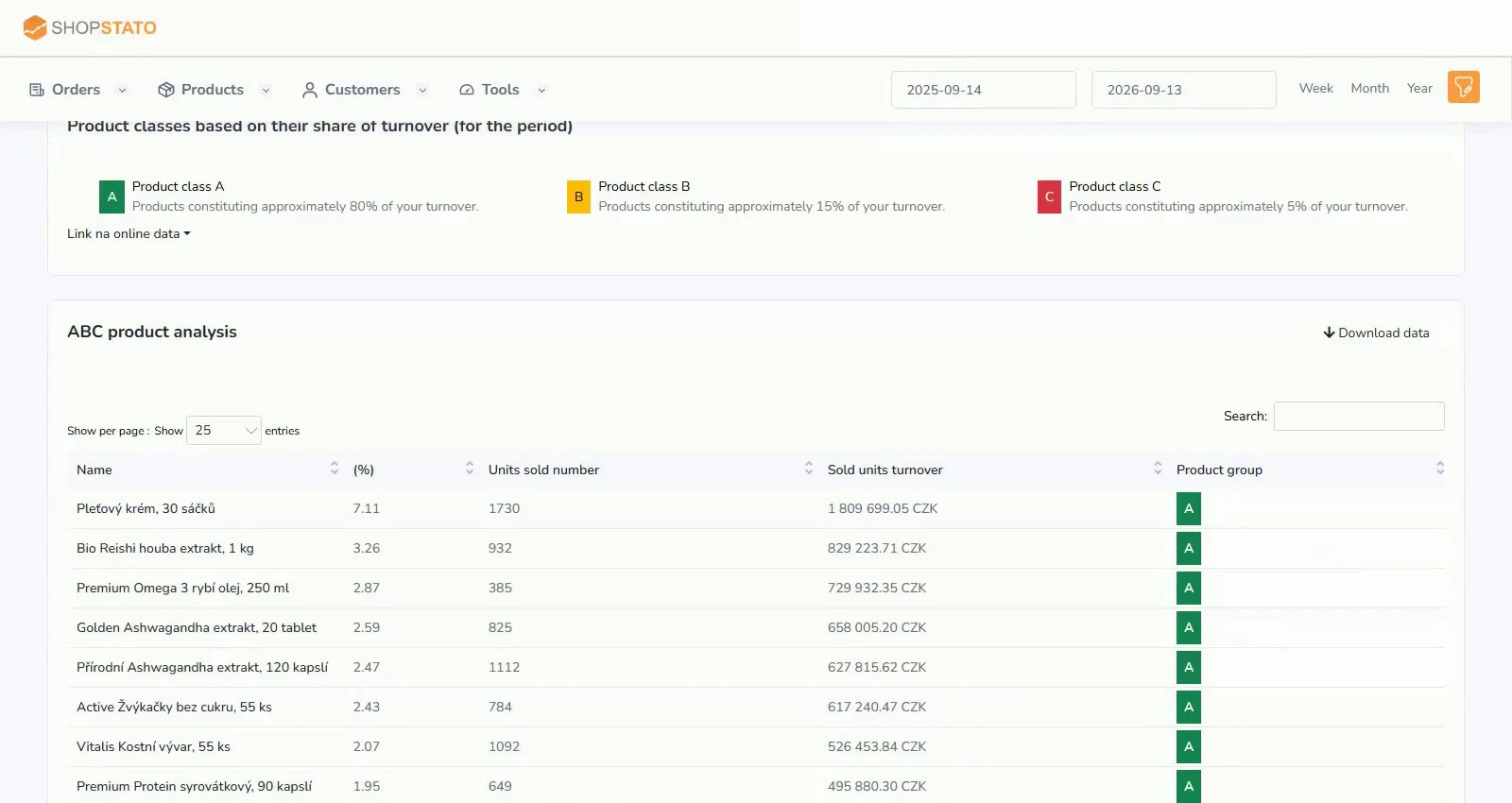
- Compare results with turnover and purchasing recommendations.
An example from the application
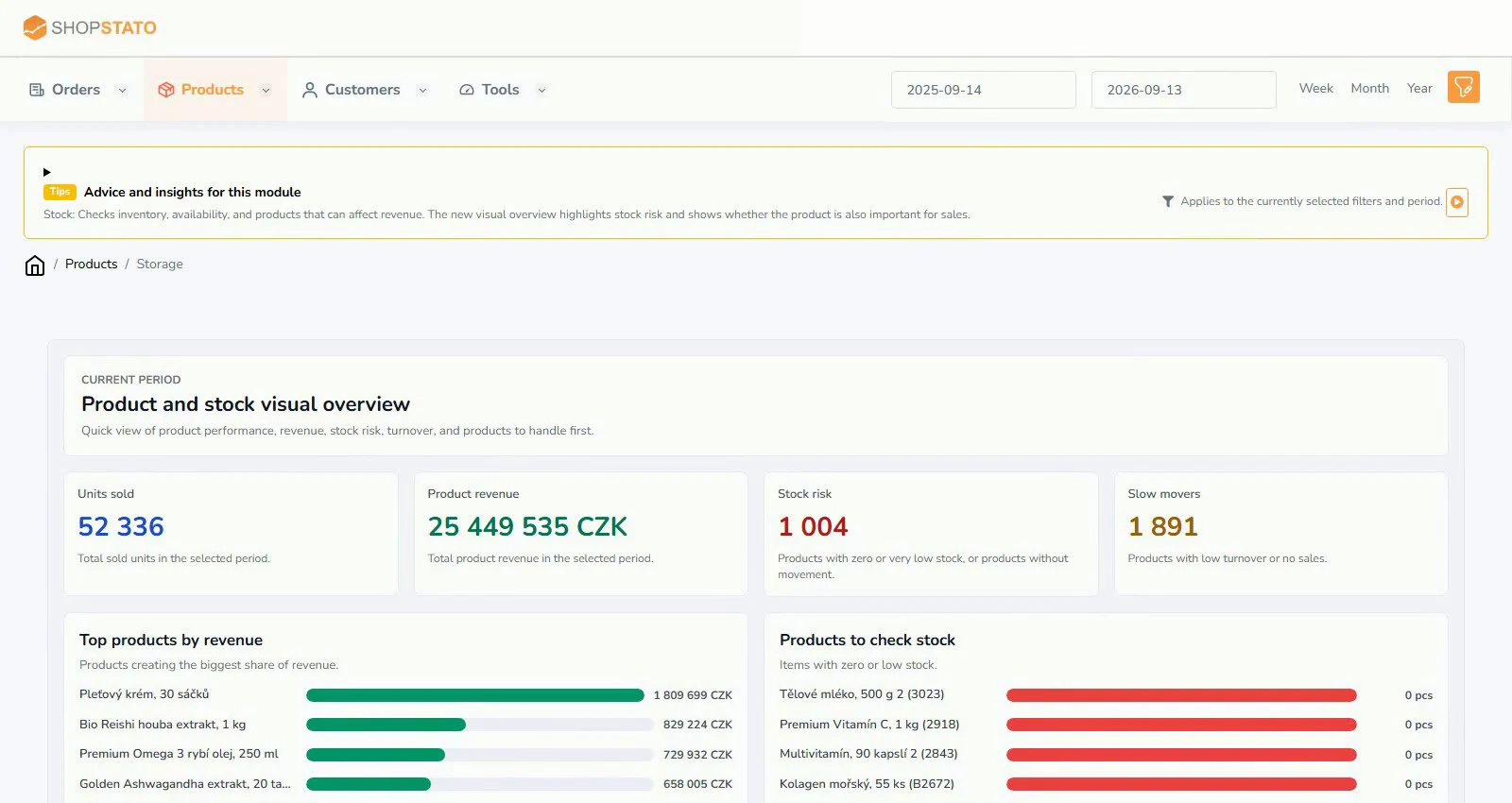 Enlarge screenshot ↗
What to consider when interpreting the result
Quantity needs context. One hundred units can sell quickly for a bestseller and last a long time for a slow item.
Continue in the application
Application links require sign-in. Access to a report depends on your permissions and the relevant module.
Source: Shopstato help centre . This English guide adds practical context and examples from English video tutorials.