InventoryGuides
Import stock: connect inventory quantities with actual sales
A step-by-step guide
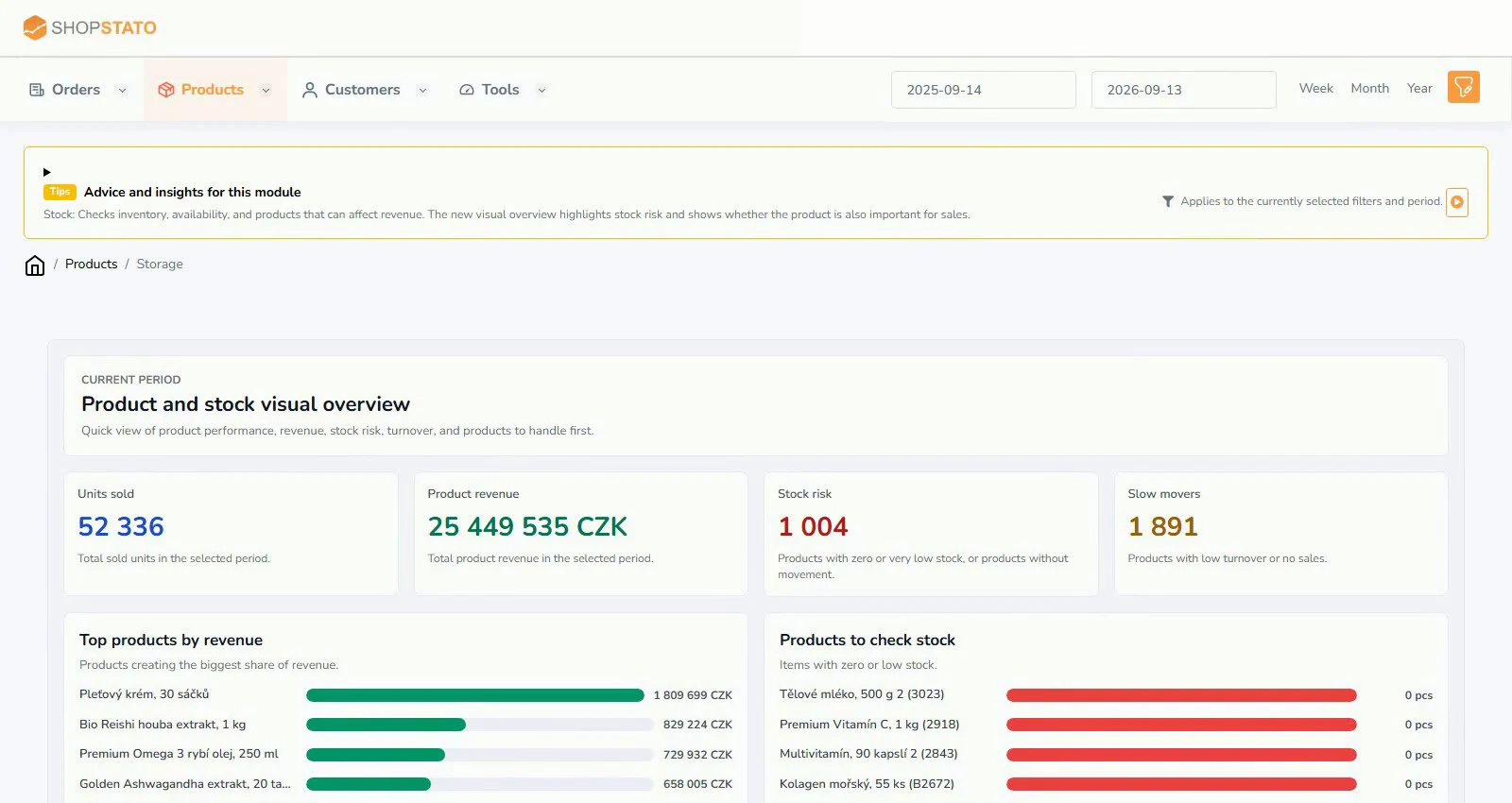
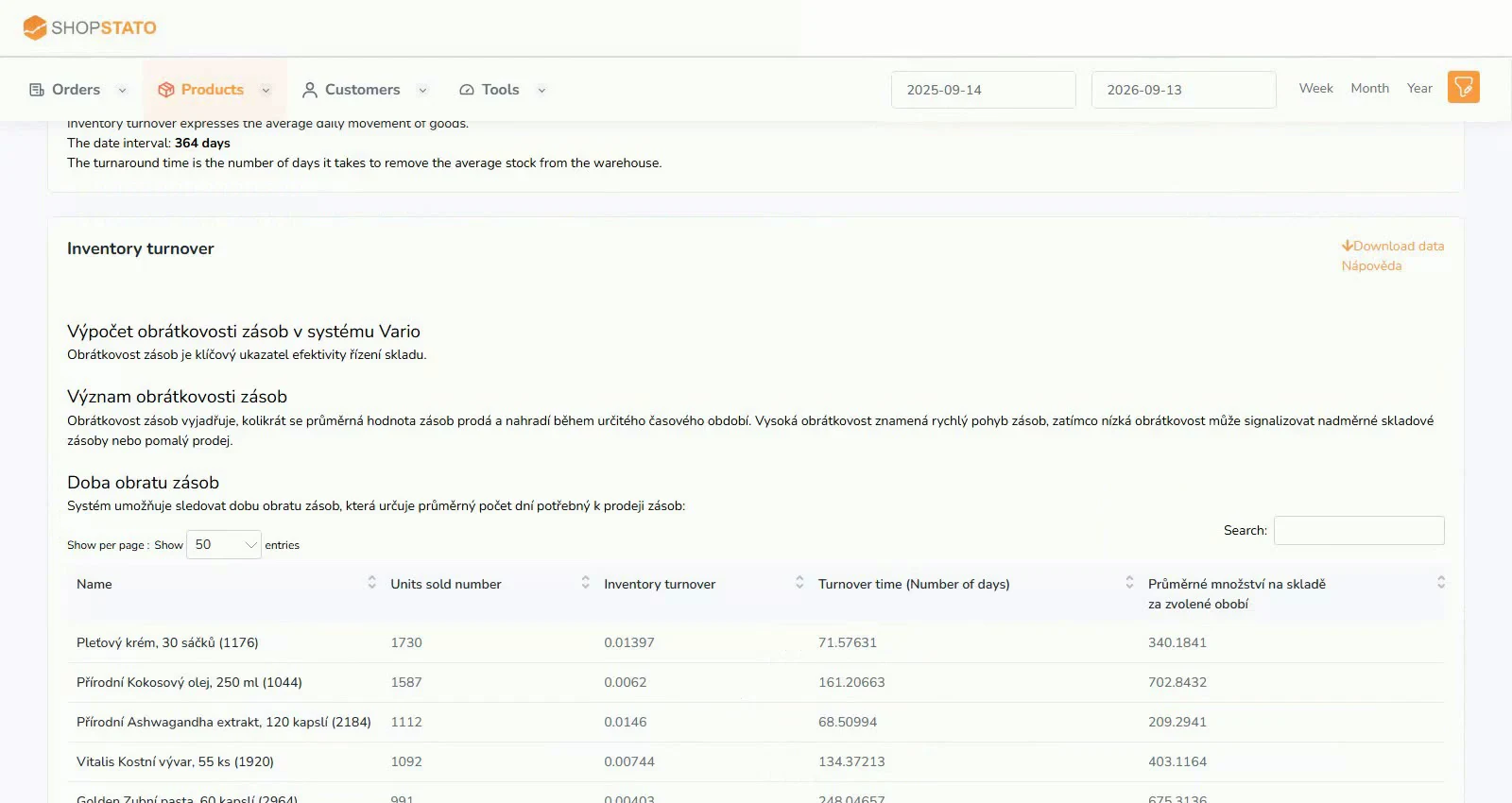
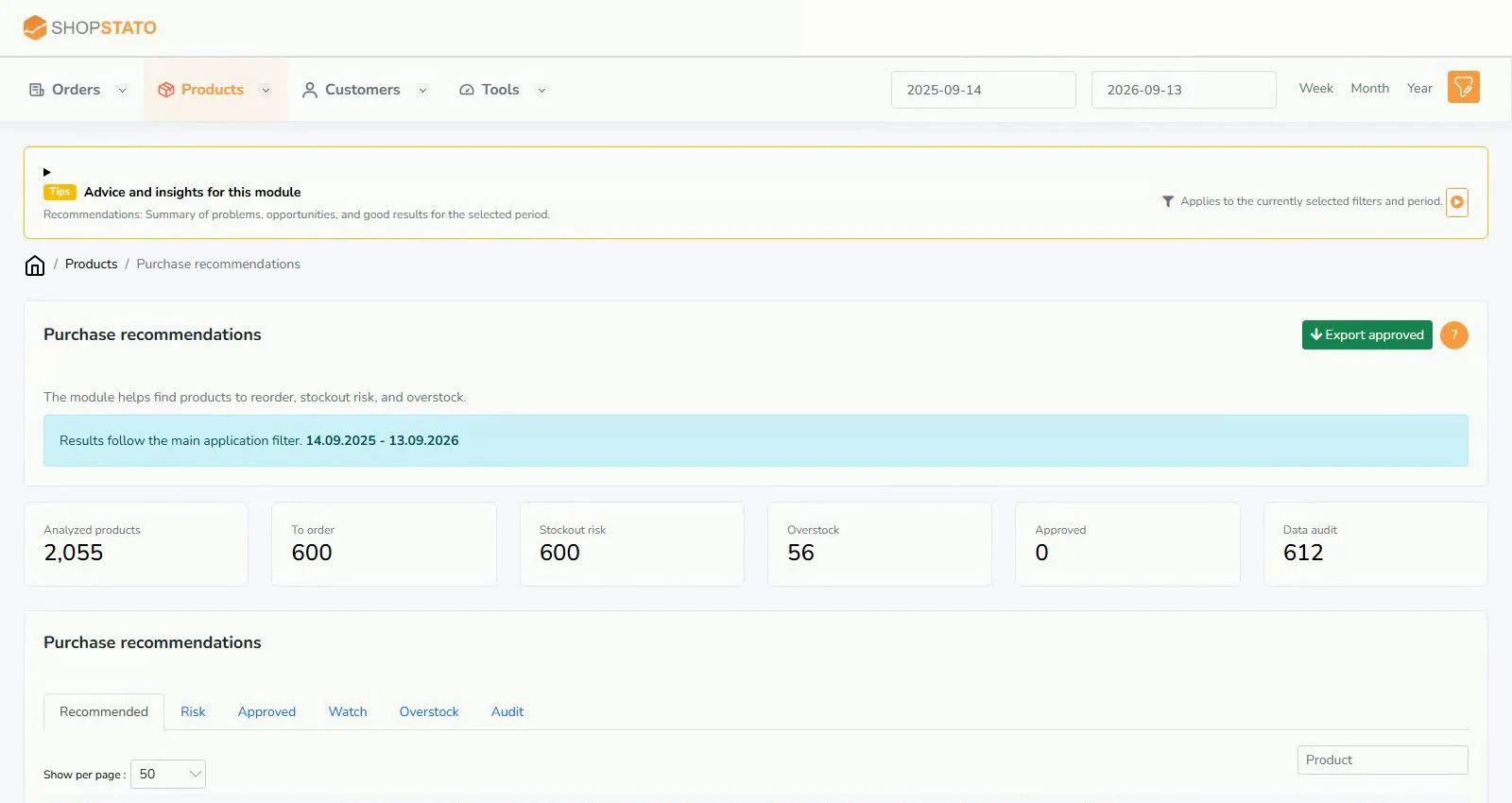
Current stock adds context to sales statistics. See which products sell and run low, and which remain on the shelf.
What to prepare
A UTF-8 file with product code or name; quantity in stock. The Czech help specifies semicolons and decimal commas; verify the format in your import form.
Step by step
- Prepare identifiers that match the products in your sales data.
- Check the file format and the date represented by its quantities.
- Upload the file in the stock import section.
- Verify matched codes and quantities, then continue to stock and turnover reports.
An example from the application
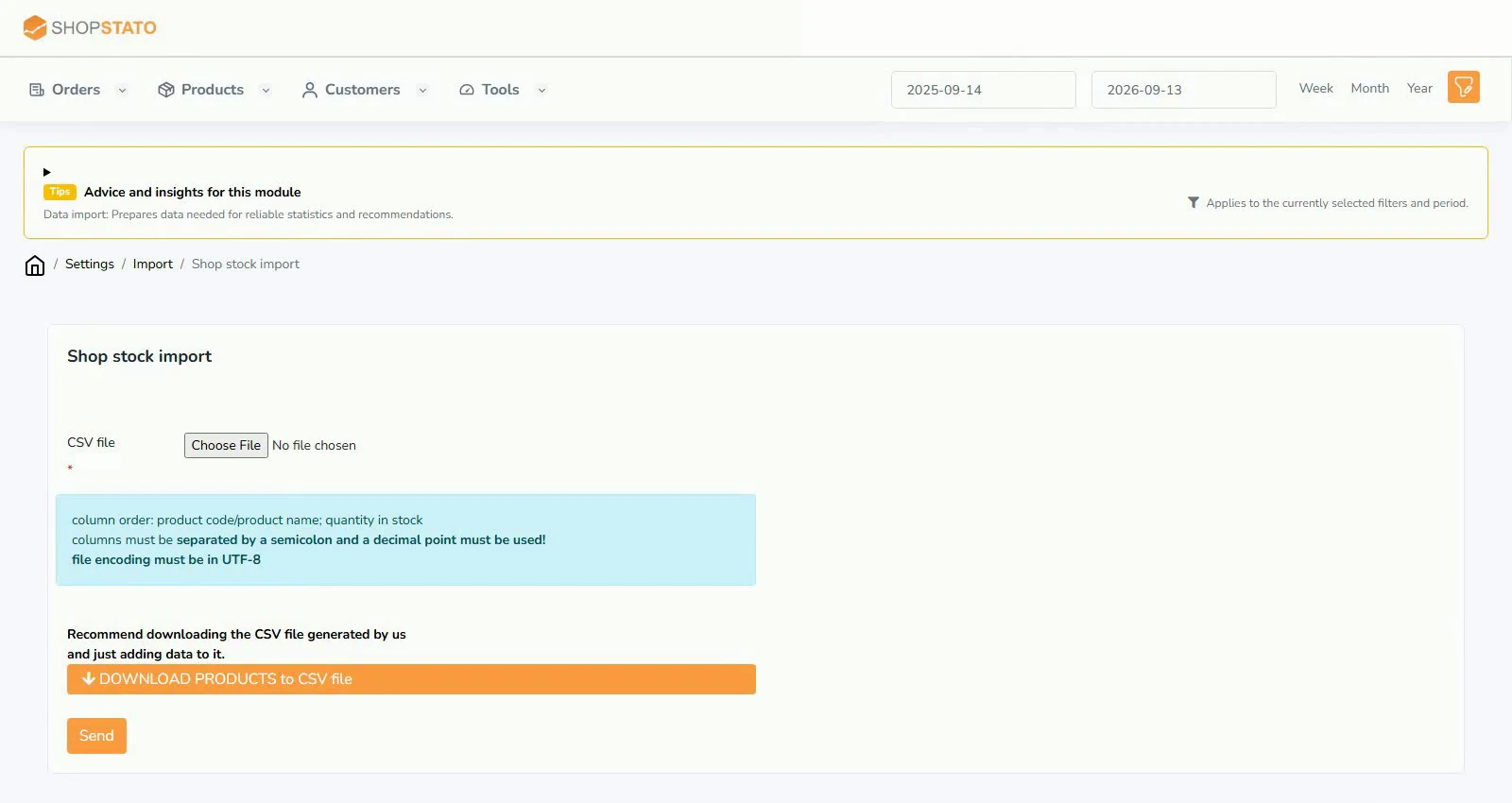 Enlarge screenshot ↗
What to consider when interpreting the result
Stock is a snapshot. An old import can recommend buying goods that have already arrived or miss a recent shortage.
Continue in the application
Application links require sign-in. Access to a report depends on your permissions and the relevant module.
Source: Shopstato help centre . This English guide adds practical context and examples from English video tutorials.