CompetitionGuides
Preset Heureka reports: understand what you receive and why
A step-by-step guide
An activation email explains who receives the Heureka report and links to its settings. Adjust delivery to the people responsible for pricing and assortment.
What to prepare
The activation message and access to automatic report settings.
Step by step
- Check the store and report recipients in the notification.
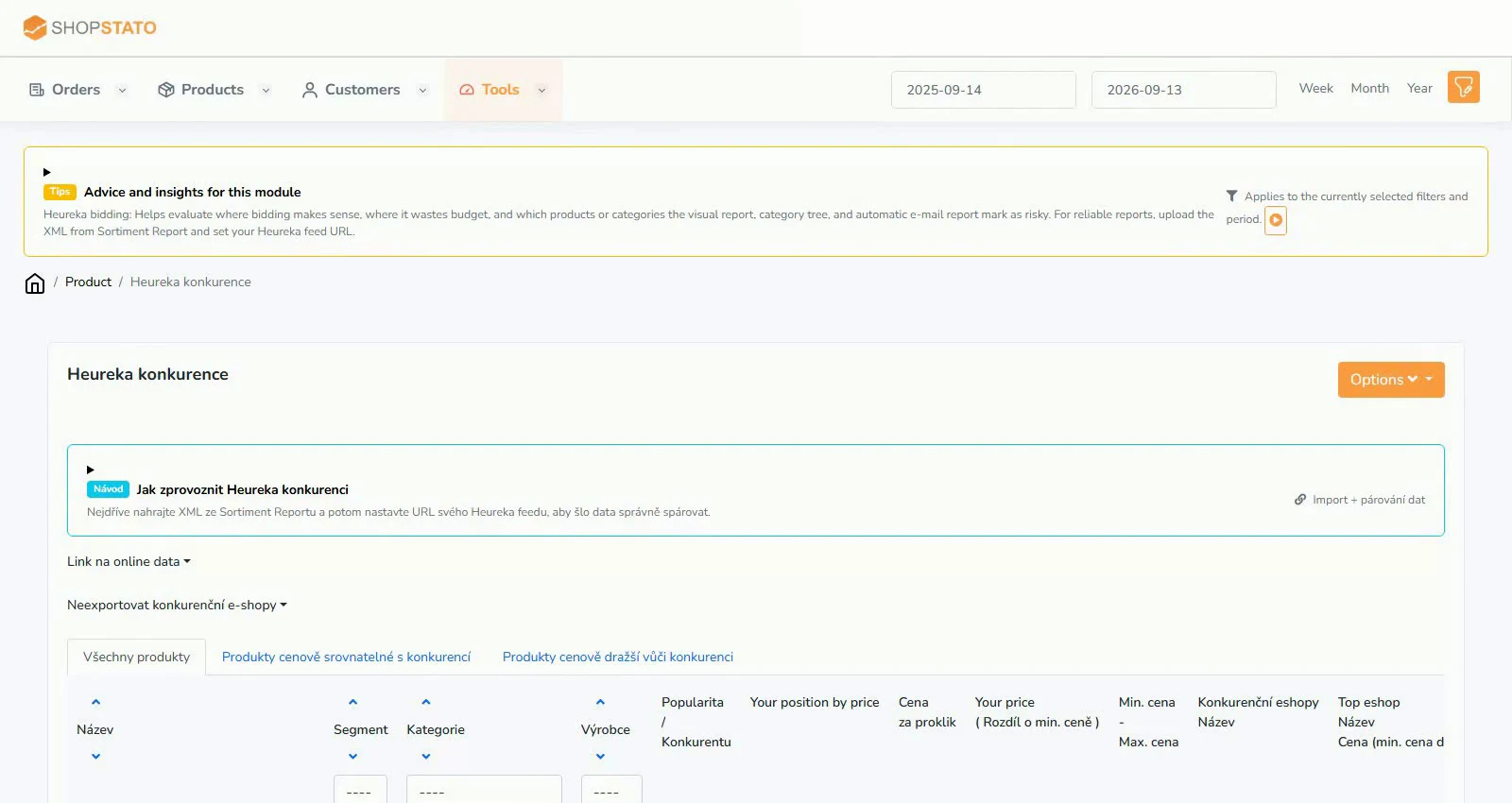
- Open automatic Heureka report settings.
- Adjust recipients, report type, frequency, language and send time as needed.
- Disable delivery in the settings if you do not want the report.
What to consider when interpreting the result
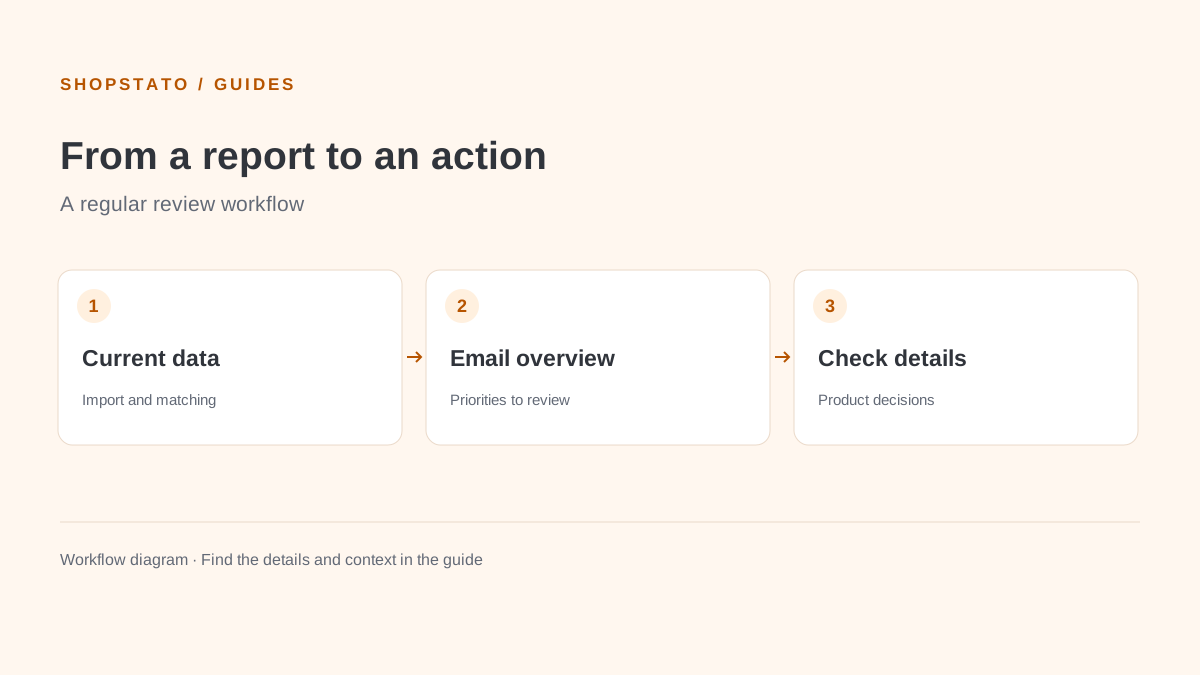
The first regular report depends on current data and the severity setting. An empty priority list does not necessarily indicate a delivery problem.
Continue in the application
Application links require sign-in. Access to a report depends on your permissions and the relevant module.
Source: Shopstato help centre . This English guide adds practical context and examples from English video tutorials.