CompetitionGuides
Heureka by email: review meaningful changes in time
A step-by-step guide
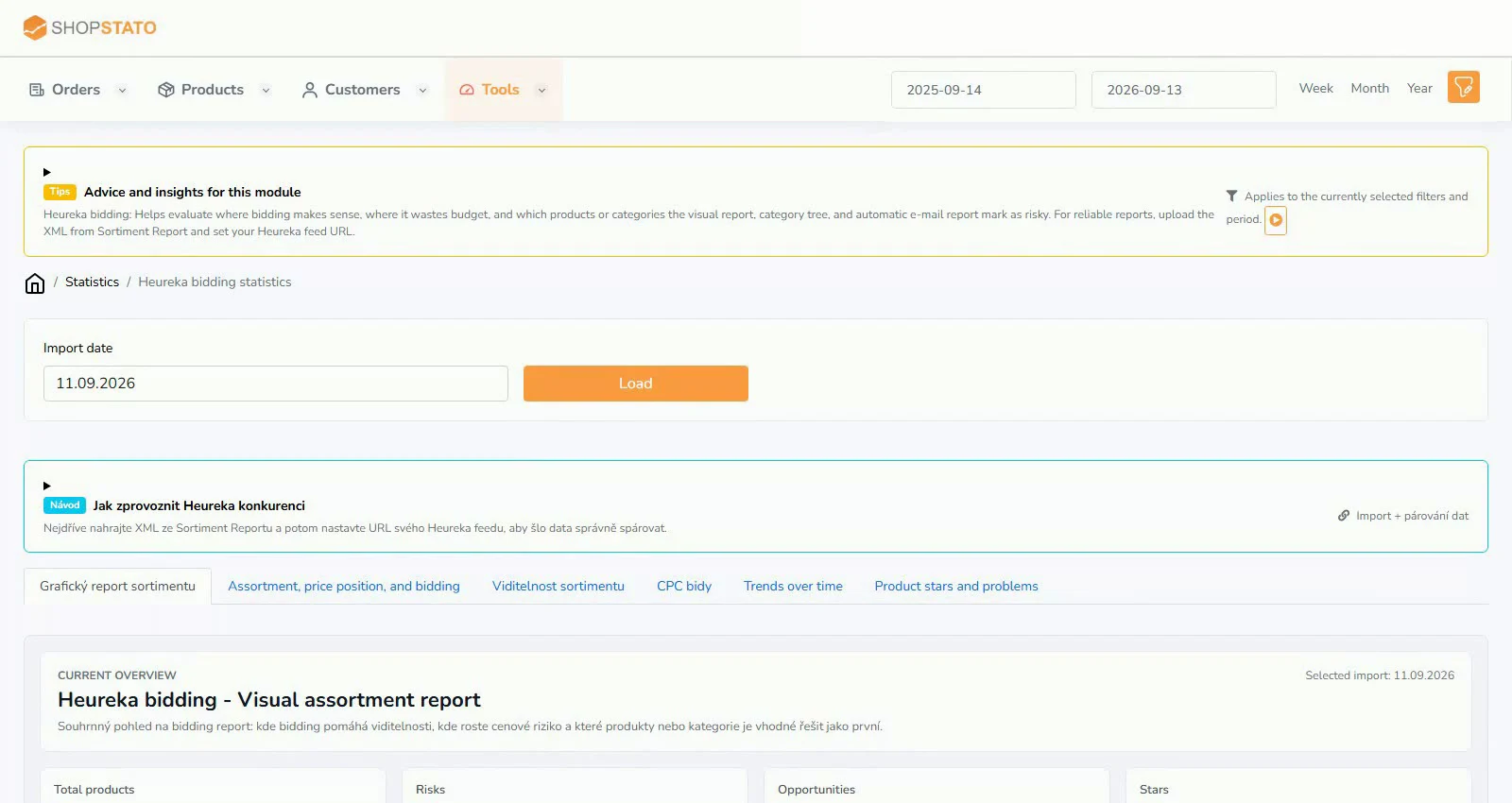
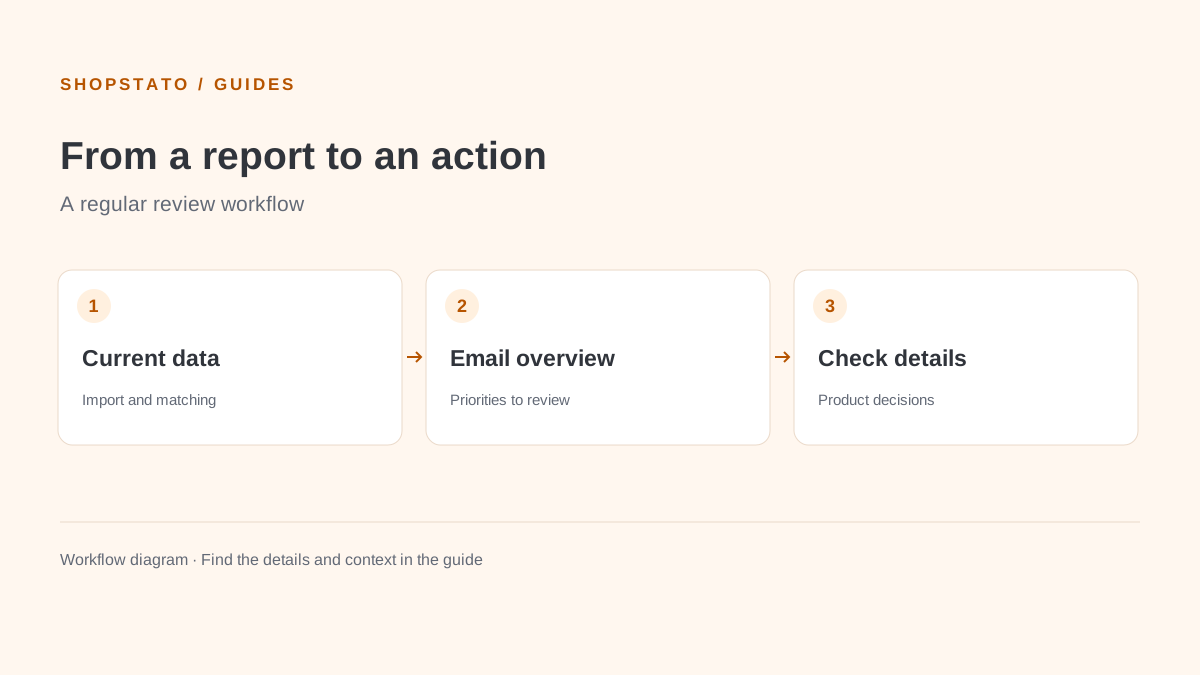
An automatic email selects products needing attention. It can highlight prices above the market, a weaker position, high CPC or low popularity.
What to prepare
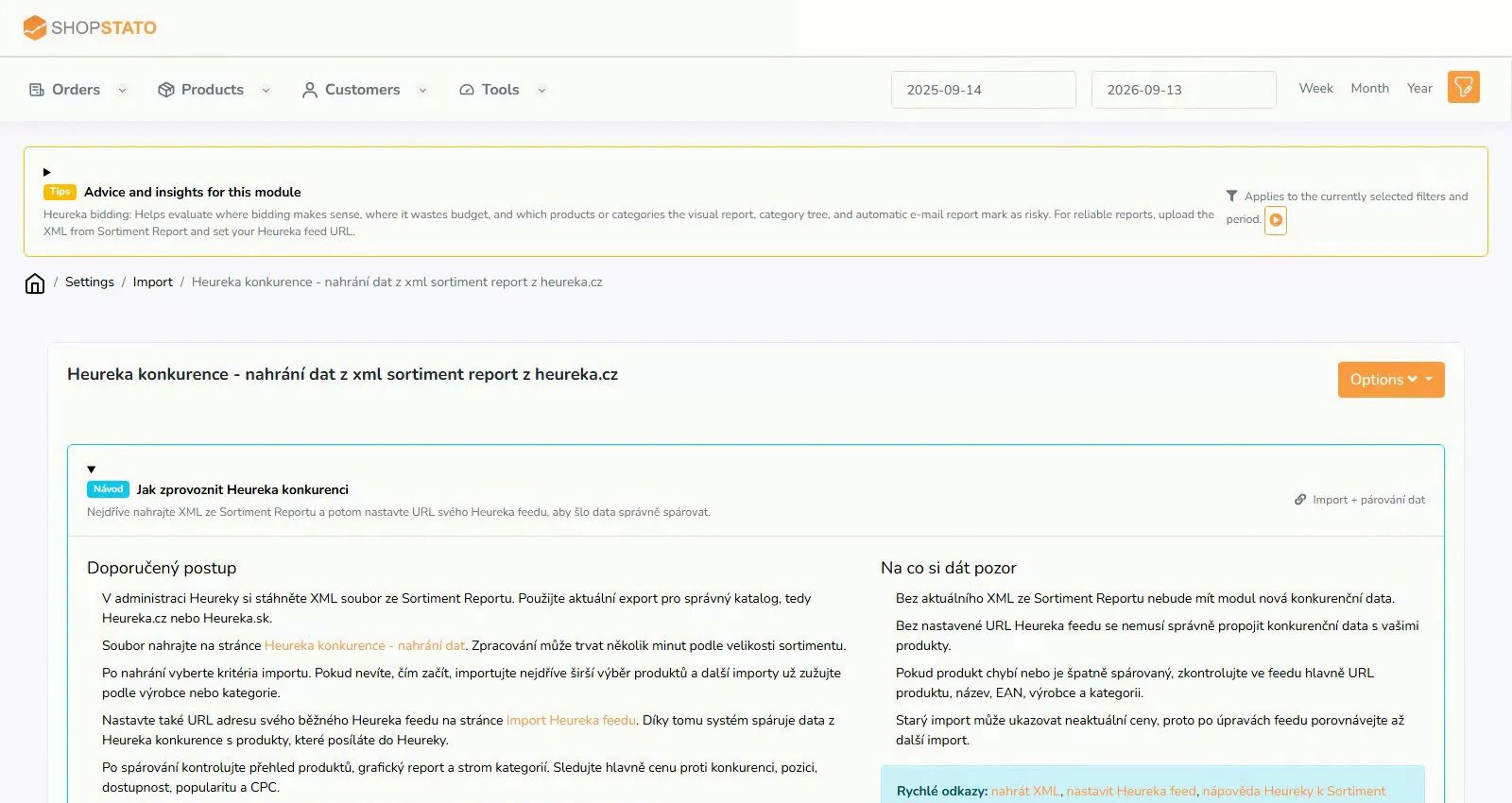
Current imported data and automatic report settings, including recipients, report type, frequency, language and send time.
Step by step
- Open the automatic Heureka email report settings.
- Choose recipients and the report type.
- Set frequency, language, send time and the number or severity of items to include.
- Review the next report and verify highlighted products in the application.
What to consider when interpreting the result
Use the report as a worklist. An alert does not necessarily mean you should cut prices: availability or incorrect matching may be responsible.
Continue in the application
Application links require sign-in. Access to a report depends on your permissions and the relevant module.
Source: Shopstato help centre . This English guide adds practical context and examples from English video tutorials.