CompetitionModules
Compari: from connection settings to competitor checks
A step-by-step guide
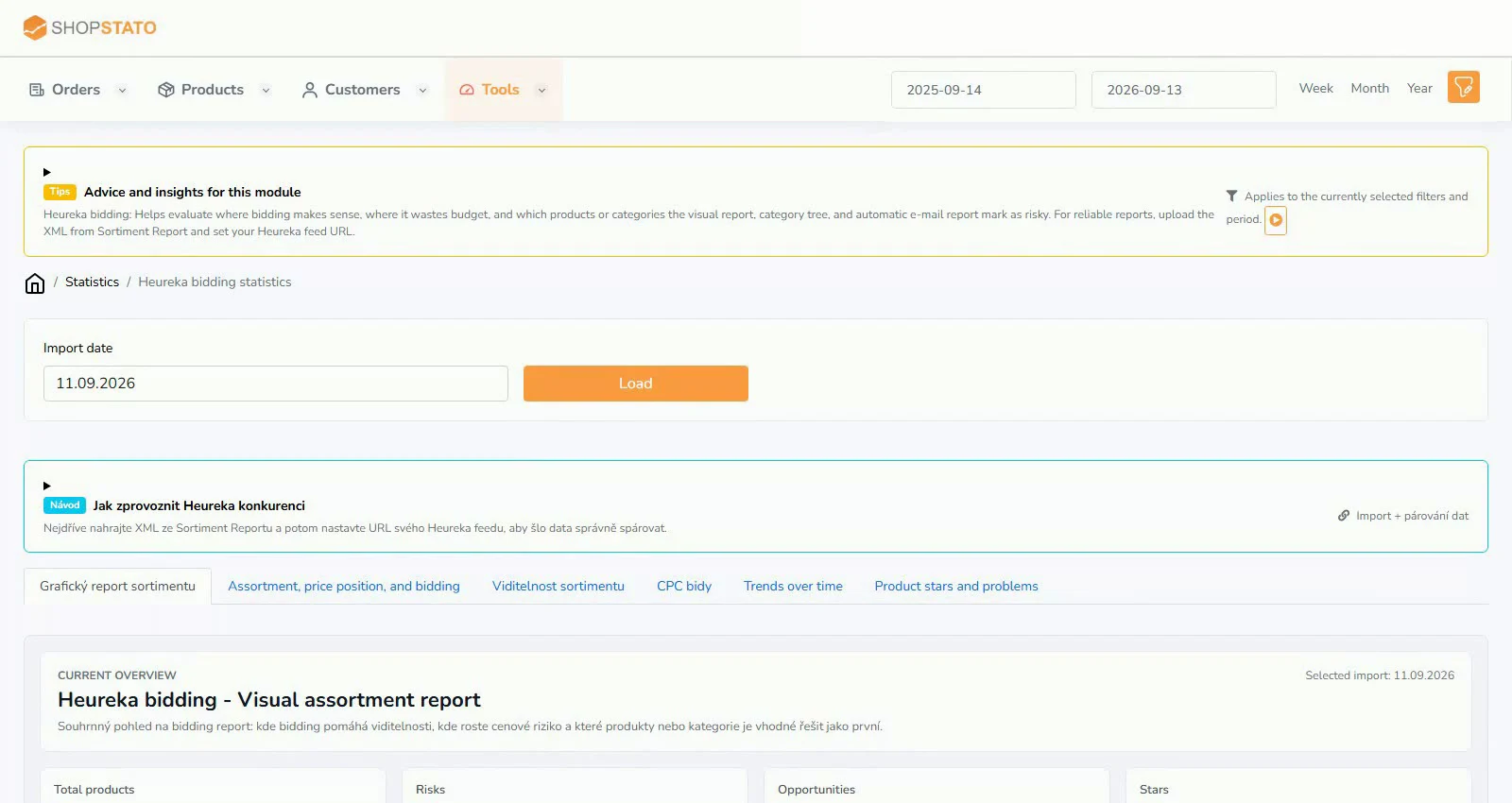
Compari brings assortment reports, prices, competitors, exports and automatic emails into Shopstato. Reliable analysis starts with an active, current connection.
What to prepare
An active module, an API key and the assortment report URL.
Step by step
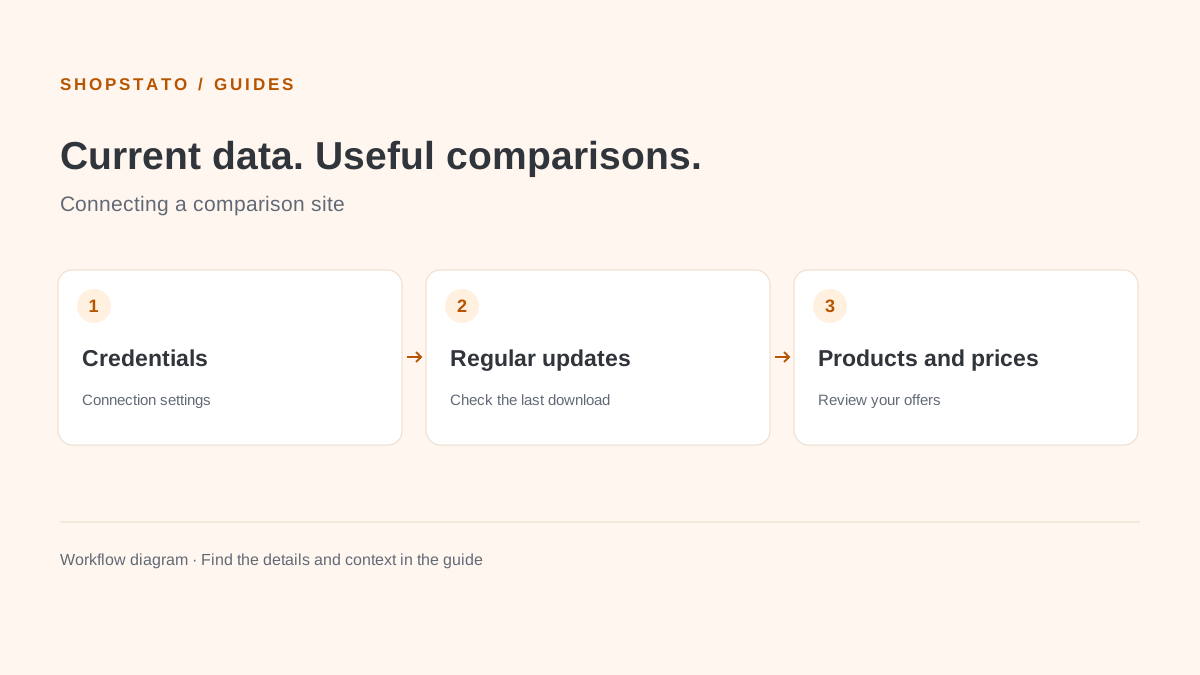
- Create a new Compari connection after module activation.
- Enter its name, API key and assortment report address.
- Activate the configuration and set the download frequency.
- Check connection status, the last download and exports.
What to consider when interpreting the result
When updates stop, check the key, report address, activation and interval. Fix the data source before interpreting prices.
Continue in the application
Application links require sign-in. Access to a report depends on your permissions and the relevant module.
Source: Shopstato help centre . This English guide adds practical context and examples from English video tutorials.