Profit & productsGuides
Average selling price (ASP): separate price from quantity
A step-by-step guide
ASP is revenue per unit sold. It helps distinguish changes in sales volume from changes in prices and product mix.
What to prepare
Revenue and unit counts for the same period and consistent order statuses.
Step by step
- Choose the periods to compare.
- Read ASP as revenue divided by units sold.
- Compare it with median unit price, which is less sensitive to extremes.
- Check changes against individual products and their quantities sold.
An example from the application
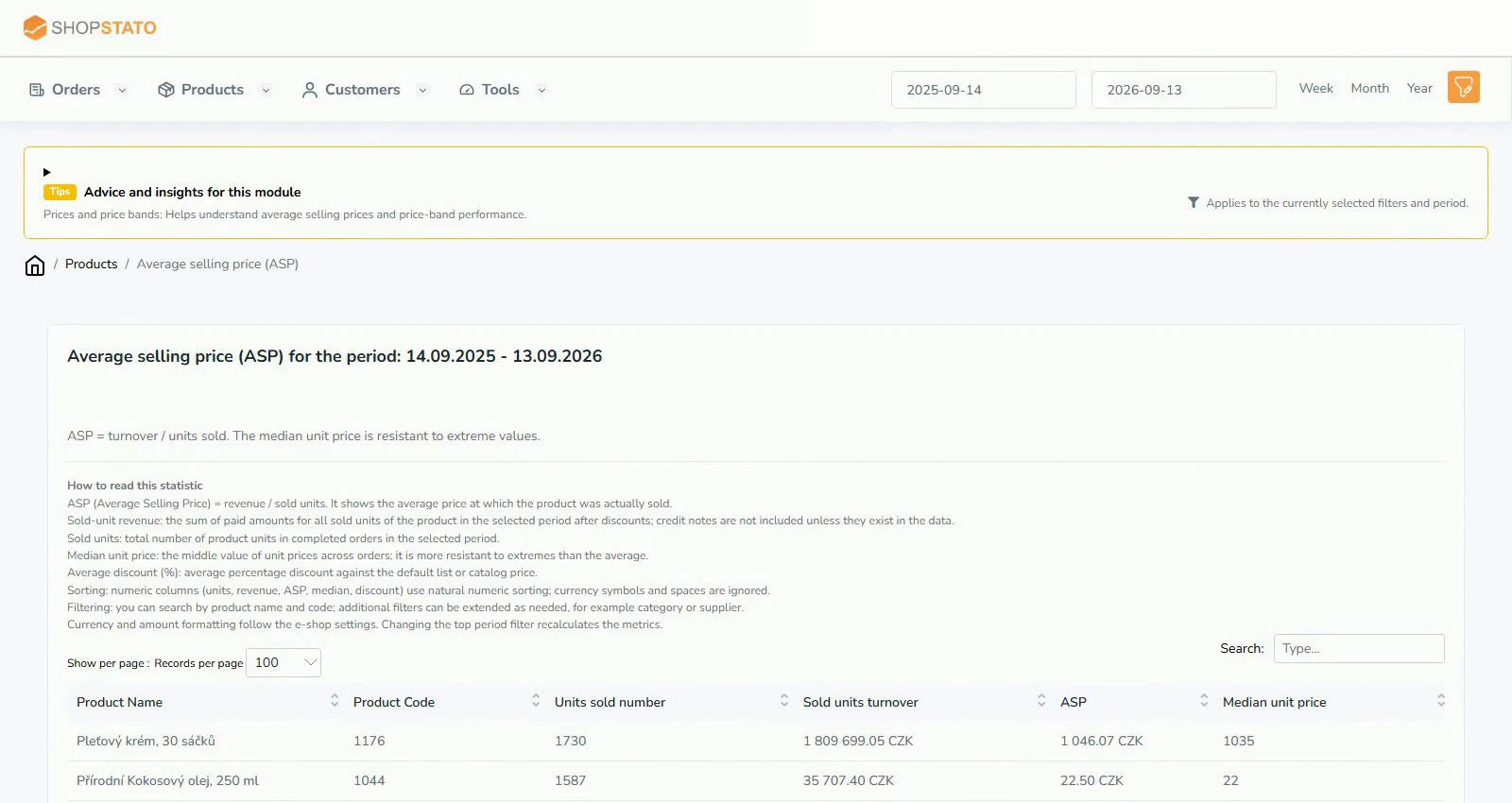 Enlarge screenshot ↗
What to consider when interpreting the result
An overall ASP change is not the same as changing the price of one product. Product mix can move the average without any price list changes.
Continue in the application
Application links require sign-in. Access to a report depends on your permissions and the relevant module.
Source: Shopstato help centre . This English guide adds practical context and examples from English video tutorials.