IntegrationsEcommerce tips
Historical order import: give your analysis more history
A step-by-step guide
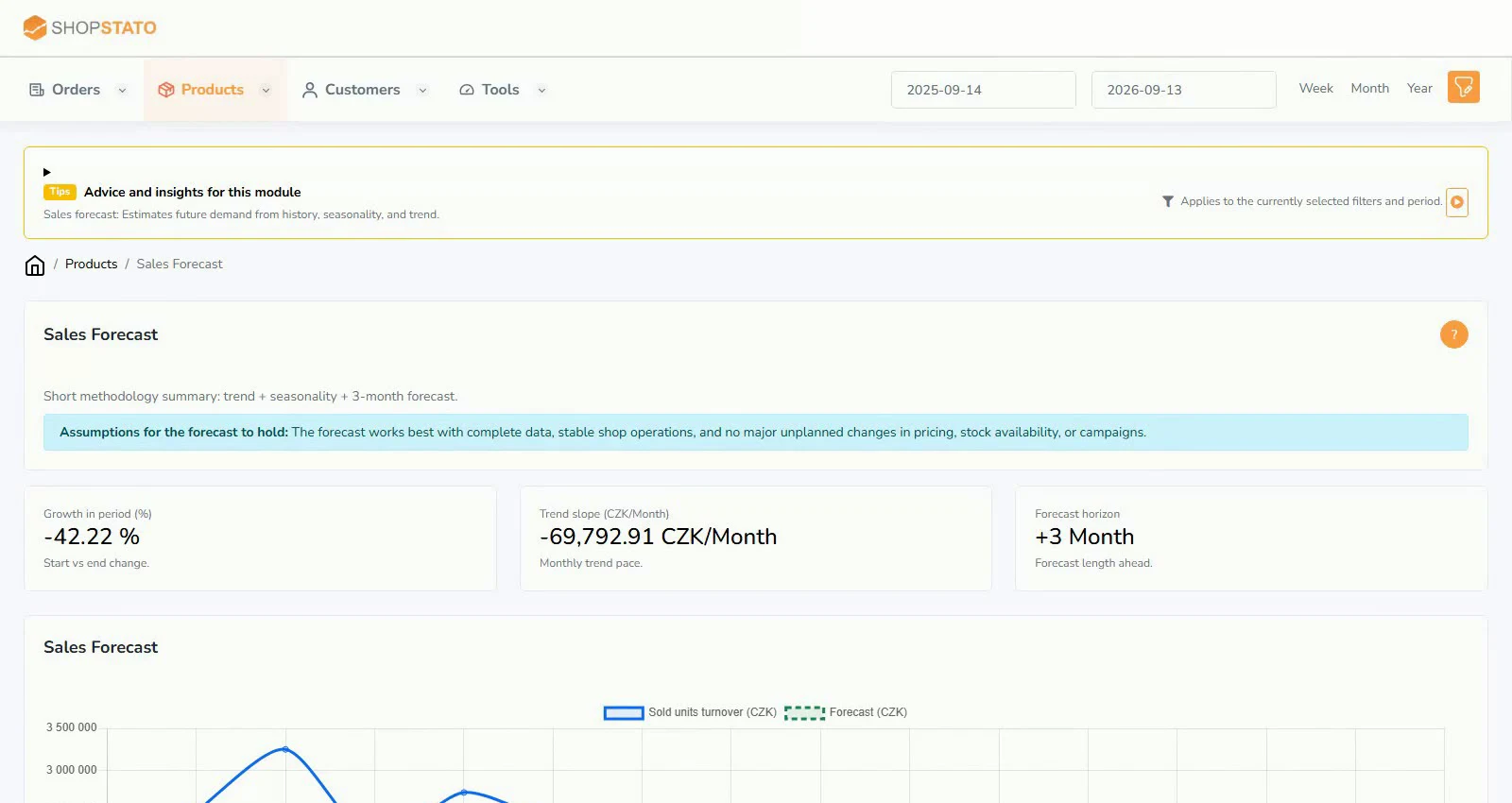
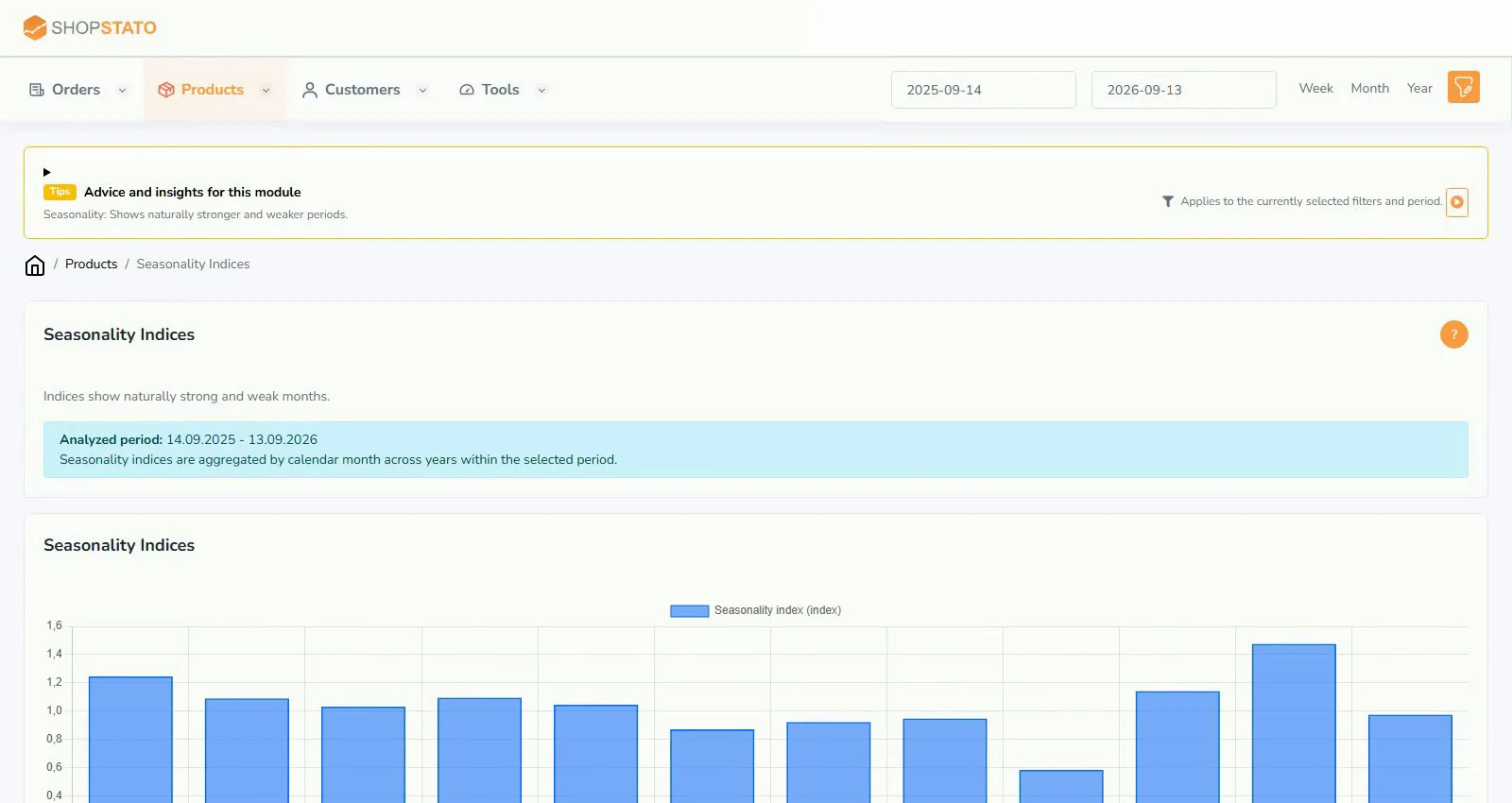
A short history shows recent activity; a longer one reveals repeat purchases and seasonality. Historical import adds orders for the preceding year.
What to prepare
A working store connection. Check the period, current terms and price shown in the application before confirming.
Step by step
- Verify the regular connection and the oldest order already in Shopstato.
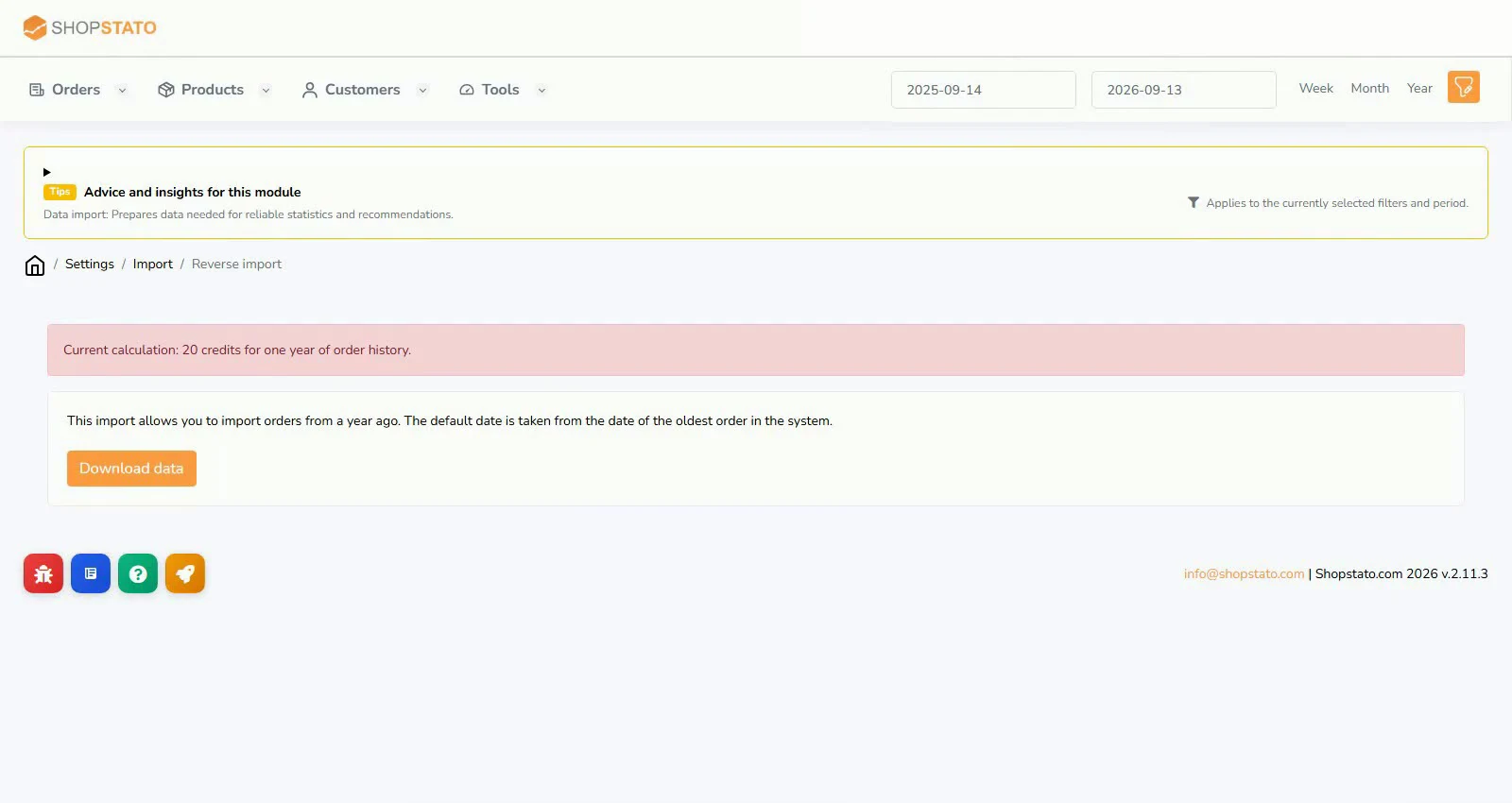
- Open historical import and review the suggested period, based on the oldest available order.
- Check the current conditions and price in the application.
- After import, compare monthly order counts and reopen customer, seasonal and forecast reports.
An example from the application
 Enlarge screenshot ↗
What to consider when interpreting the result
Seasonal comparisons need complete history. A missing month can look like a sales decline even though it is only a gap in imported data.
Continue in the application
Application links require sign-in. Access to a report depends on your permissions and the relevant module.
Source: Shopstato help centre . This English guide adds practical context and examples from English video tutorials.